Cloud ERP by Business Layers
Purchasing Guide — Purchase Order Management
Admin guide: how to create a purchase order, manage it with the supplier, and track it until completion.
What the Procurement System Does
The procurement system centralizes all business purchase orders in one place. Each order includes the supplier, the customer the order is for (if applicable), shipping address, dates, currency, item lines, attachments, and notes.
From each order, you can generate a formatted document for printing or sharing, send the supplier a request for quotation, and track the status until the order is completed.
What You Get with Purchase Order Management
- One list of all orders — newest first, with status, supplier, dates, and amount.
- Automatic, fixed order number in the format PO-YYYYMMDD-ID.
- Item lines with quantity, price, total, full description, and notes for each line.
- Order attachments, plus images and documents for each item.
- A formatted order document for printing, saving, and sharing, plus a request for quotation (RFQ) to the supplier.
- Change log for each order, plus completion fields: completion date and completion notes.
Purchase Order Lifecycle
- Draft
draftThe order has been created and is still being prepared. Everything can be changed. - Pending
pendingThe order is ready and awaiting approval or the supplier's response. - Approved
approvedThe order has been approved and is being processed with the supplier. - Shipped
shippedThe supplier has shipped the goods. Awaiting receipt.
When the order is completed, fill in "Completion Date" and "Completion Notes". The exact status names appear in the screen's dropdown list.
How to Manage a Purchase Order, Step by Step
Open the Procurement System
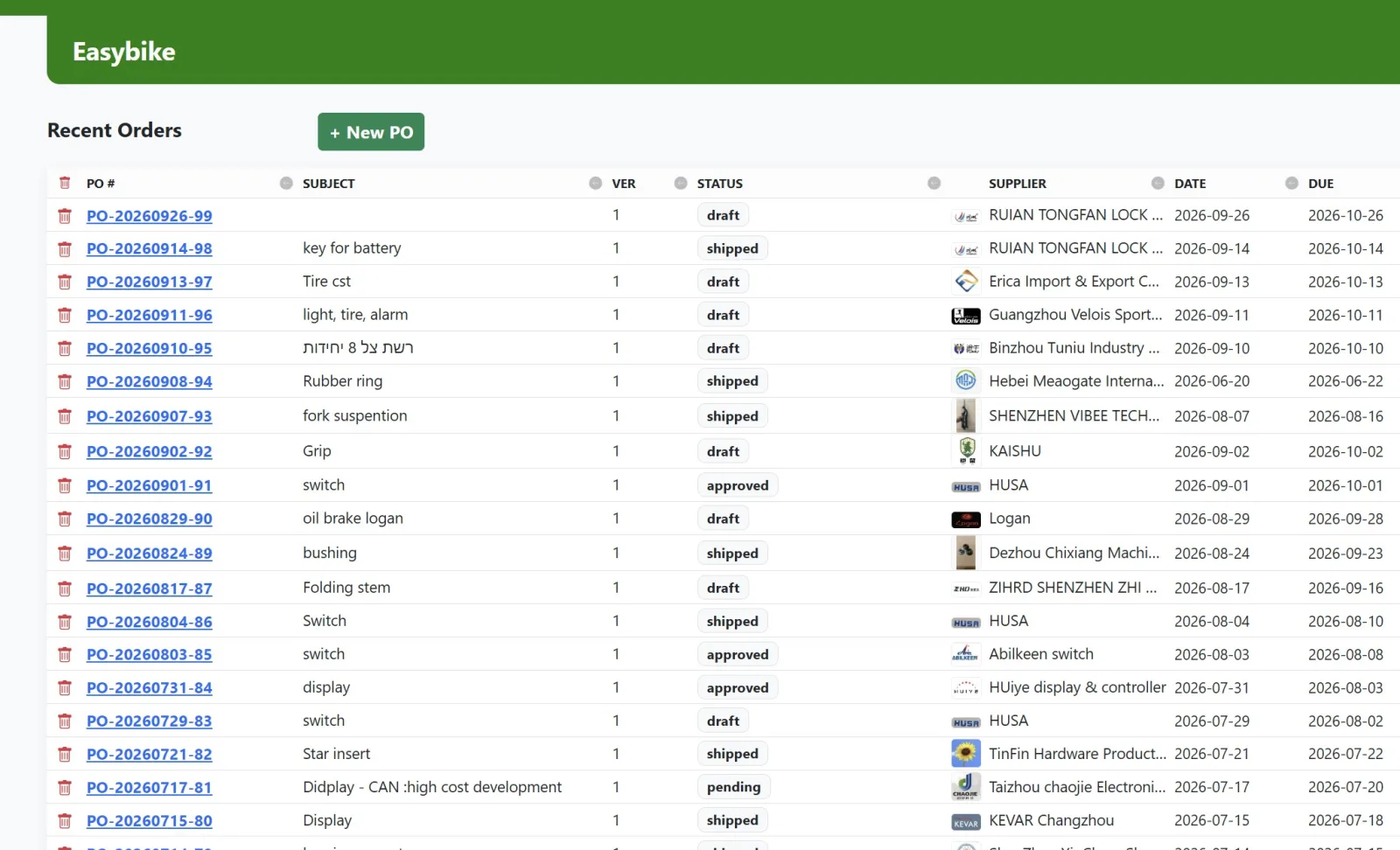
The first screen displays a list of the latest orders. Click an order number to open it.
Create a New Order
Click "+ New PO". A new order opens with an automatic number.
Fill in the Order Header
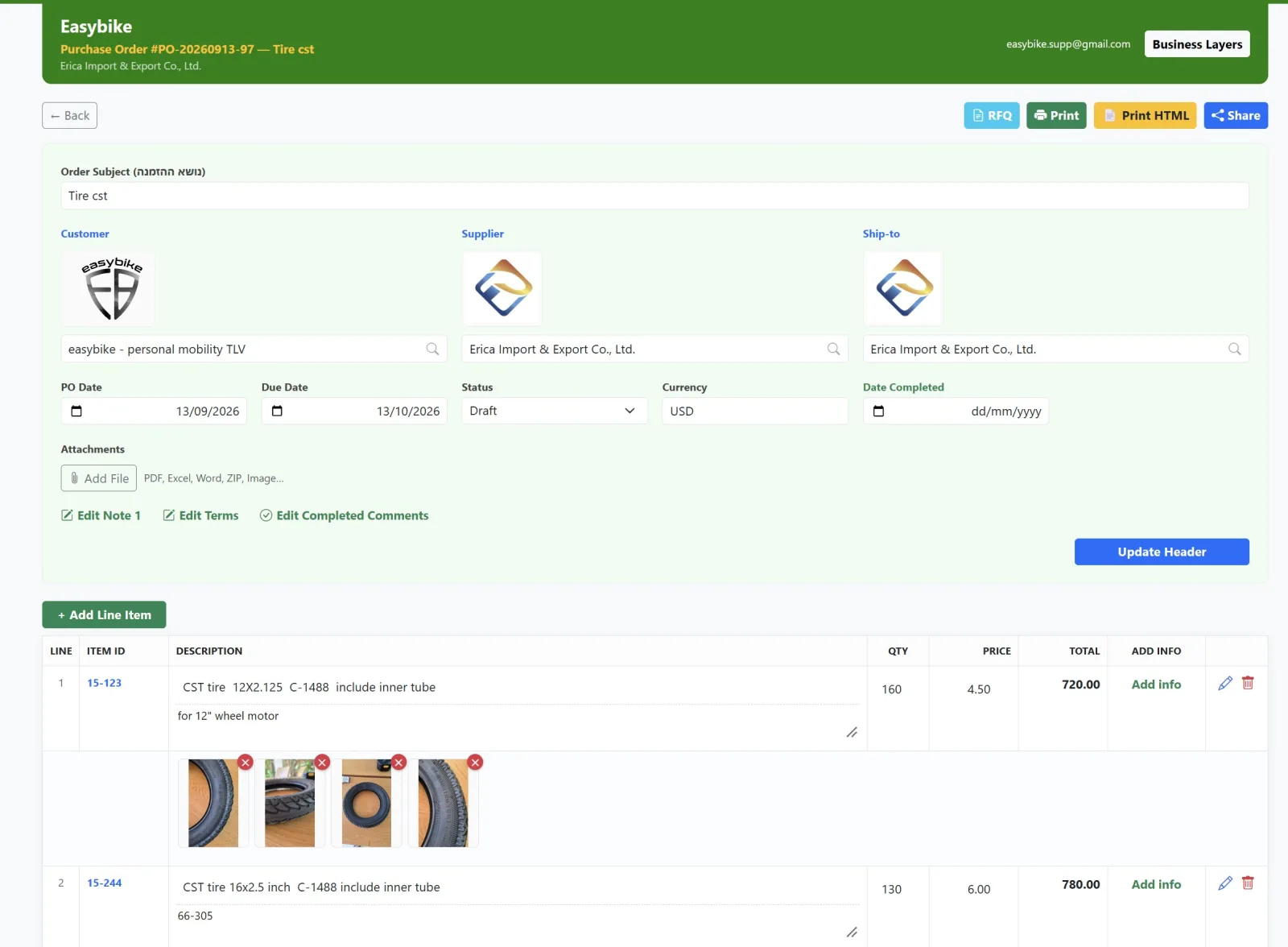
Order subject, supplier, customer (if the order is for them), shipping address, order date, due date, currency, and status. Save with "Update Header".
Add line items
Search for an item in "Item Search" or click "Add Line Item". For each line, enter the quantity, price, and description, then save with "Save Item".
Add line details
Save the full description and notes with "Save Rich Info". Add item images and documents through the item's media.
Attach files to the order
Add the supplier quotation, specifications, and invoice using "Add File" in the attachments area.
Generate and send the document
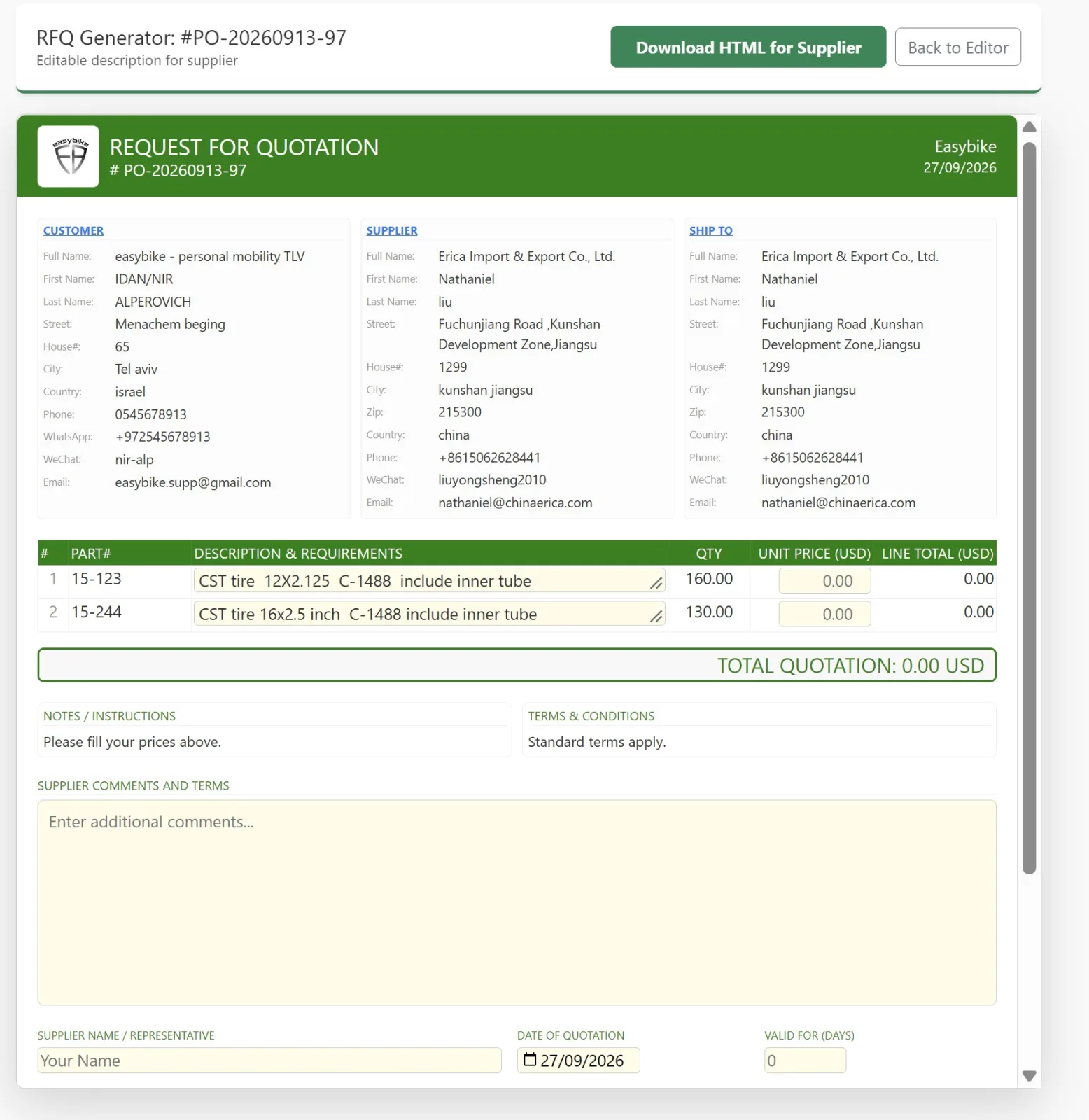
Use "Print" to print, "Print HTML" for a formatted document, "Share" to share, and RFQ to request a quotation from the supplier.
Update the status as you go
Draft ← Pending ← Approved ← Sent. Every change is recorded in the order log.
Close the order
When the goods are received, fill in "Completion Date" and "Closing Notes".
Purchase order screen fields
Order header
- Order subject (Order Subject)
- A short description to help identify the order in the list.
- Supplier (Supplier)
- Who the order is sent to. Select from the address book.
- Customer (Customer)
- If the order is placed for a specific customer.
- Shipping address (Ship-to)
- Where the supplier should send the goods.
- Order date (PO Date)
- The date the order was opened or sent.
- Due date (Due Date)
- When the goods should arrive.
- Currency (Currency)
- The currency of the order prices.
- Status (Status)
- Where the order is in the process.
- Attachments
- Documents related to the entire order.
- Notes and terms
- Notes for the supplier and payment and delivery terms.
- Completion date and closing notes
- Fill in when the order is complete.
Item lines
- Line
- Order line number.
- Item ID / SKU
- Item code.
- Description
- Short item description.
- Qty
- Quantity.
- Price
- Unit price.
- Total
- Quantity × price.
- Notes
- Short line note.
Order list
The order list displays: order number (PO #), subject, version, status, supplier, date, due date, total, currency, created by, actions, and log.
Related purchase order programs
po_export.phpFormatted order document (HTML) — for printing, saving, and sharing.
po_rfq_v2.phpRequest for quotation (RFQ) — a specially formatted document for sending to suppliers.
po_upload_attachment.phpUpload files attached to the order.
address.phpAddress cards — suppliers, customers, and shipping addresses: details, logo, and contact person.
item-media.phpItem media — upload, delete, and arrange images and documents.
business_layers.phpBusiness layers — permissions, roles, and organizational workflows.
Tips for working effectively with purchase orders
- Before creating an order, make sure the supplier card exists and its addresses are up to date — this ensures the details are entered correctly in the document.
- A clear order subject saves time when searching the list.
- Save each line after editing ("Save Item") before moving to the next line.
- Attach the supplier's quotation to the order — this keeps all the information in one place.
- Send the order document to the supplier only after the status and item lines are final.
Frequently Asked Questions About Purchase Orders
What is a purchase order?
A document the business sends to a supplier listing the items, quantities, prices, and delivery terms. It records the commitment to the supplier and enables tracking delivery until the goods arrive.
How do I create a new purchase order?
On the first screen of the purchasing system, click "+ New PO". A new order opens with an automatic number. Enter the supplier, dates, currency, and item lines.
How do I send a purchase order to a supplier?
From the order, click "Print" to print, "Print HTML" for a formatted document, or "Share" to share it, then send it to the supplier.
What is the difference between a purchase order and a request for quotation (RFQ)?
A request for quotation asks the supplier how much it will cost. A purchase order is the actual order, after the price has been agreed.
How do I attach the supplier's quotation to the order?
In the attachments area, click "Add File" and select the file — PDF, Excel, Word, ZIP, or an image.
How do I track open orders?
The order list shows the status and due date for each order, so you know what is still awaiting delivery.
How do I close a purchase order?
When the goods are received, fill in the "Completion Date" and "Closing Notes", then update the status.