Cloud ERP by Business Layers
Landing Page Builder Guide
Guide for site admins: how to build a business landing page in minutes—from an existing website, questionnaire, or template—and choose which page is active.
What the Landing Page Builder Does
The Landing Page Builder creates a landing page for the business using the system's standard design. You can import content from the business's existing website, fill out a short questionnaire, or start with a ready-made template—and then edit any text or image directly on the page.
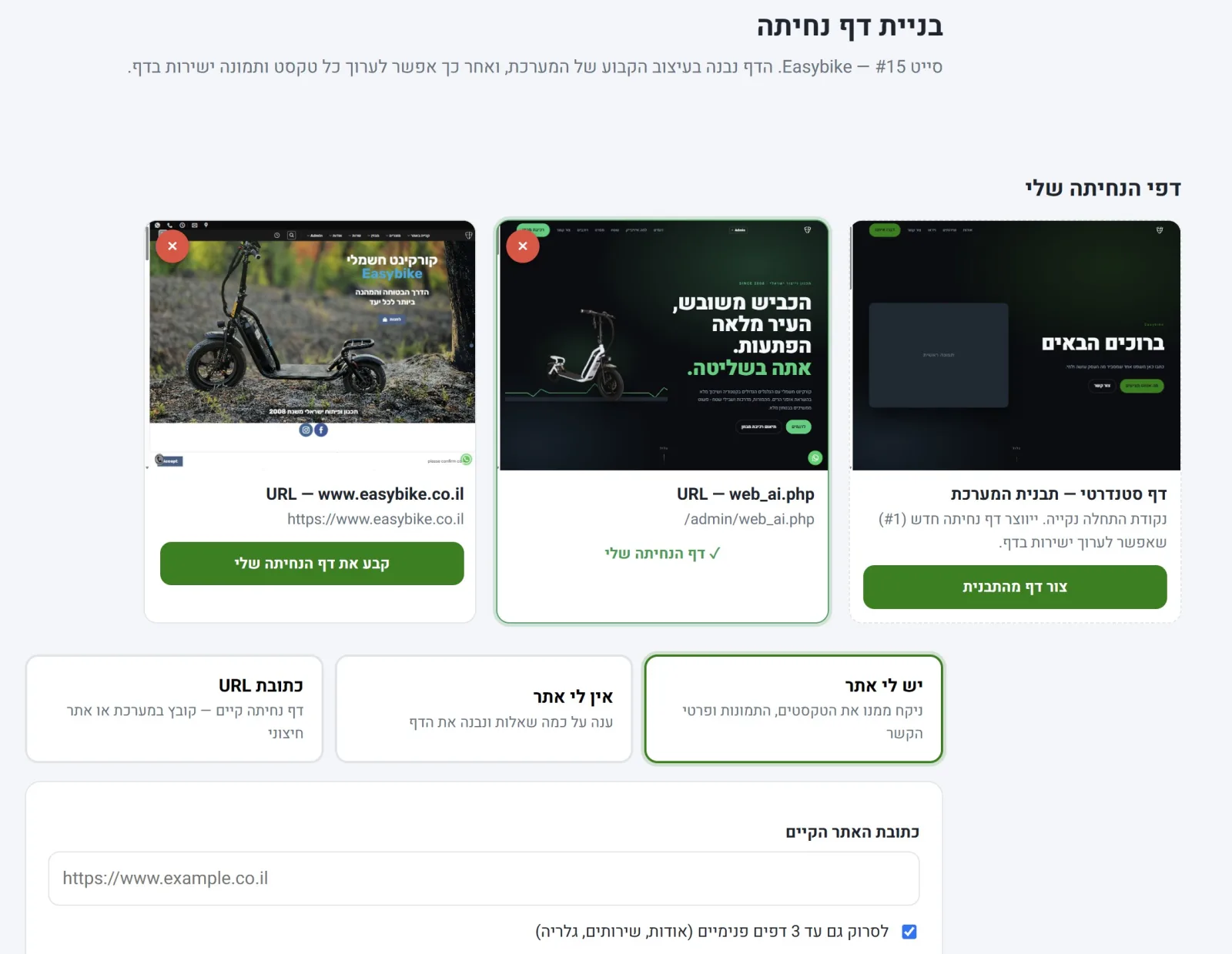
Each site can have multiple landing pages. They are all displayed in the "My Landing Pages" grid with thumbnails. Click one to set it as the business's landing page. You can also set another existing page—a file in the system or an external website.
What You Get with the Landing Page Builder
- A ready landing page in minutes, with no developer or designer needed.
- Automatic import from the existing website: headings, about, services, images, phone, email, and brand color.
- A short questionnaire for businesses that do not have a website yet.
- A ready-made template—a clean starting point for editing.
- Multiple pages per site, with one-click switching between them.
- Images are copied to the server and compressed to WebP format.
Four Ways to Build a Landing Page
TemplateStandard Page"Create Page from Template" — a new page using the system's design, edited directly.I Have a WebsiteImport from WebsiteWe scan the existing website and extract text, images, and contact details.I Don't Have a WebsiteQuestionnaireAnswer a few questions and upload images—the page is built from your answers.URLExisting PageSet an existing landing page: a file in the system or an external website.Every import, questionnaire, or template creates a new landing page—an existing page is not overwritten. The active page is marked in the grid as "✓ My Landing Page".
How to Build a Landing Page, Step by Step
Open the Landing Page Builder
At the top is the "My Landing Pages" grid, with three tabs below it: I have a website, I don't have a website, URL.
Start with a template (the fastest way)
On the "Standard Page — System Template" card, click "Create Page from Template". A new page is created and set as the landing page.
Or: Import from an existing website
In the "I have a website" tab, enter an address starting with https://. You can select up to 3 internal pages to scan — About, Services, Gallery. Click "Import and Build Page" — it may take up to a minute.
Or: Fill out a questionnaire
In the "I don't have a website" tab, enter the business name, headline, business description, About text, up to 6 services with images, phone, email, address, business hours, hero image, About image, and gallery images. Click "Build Page".
Check the result
After the page is built, a summary is displayed: business name, headline, number of services and images, phone, and email. "Details" shows what was scanned and what failed.
Edit the page
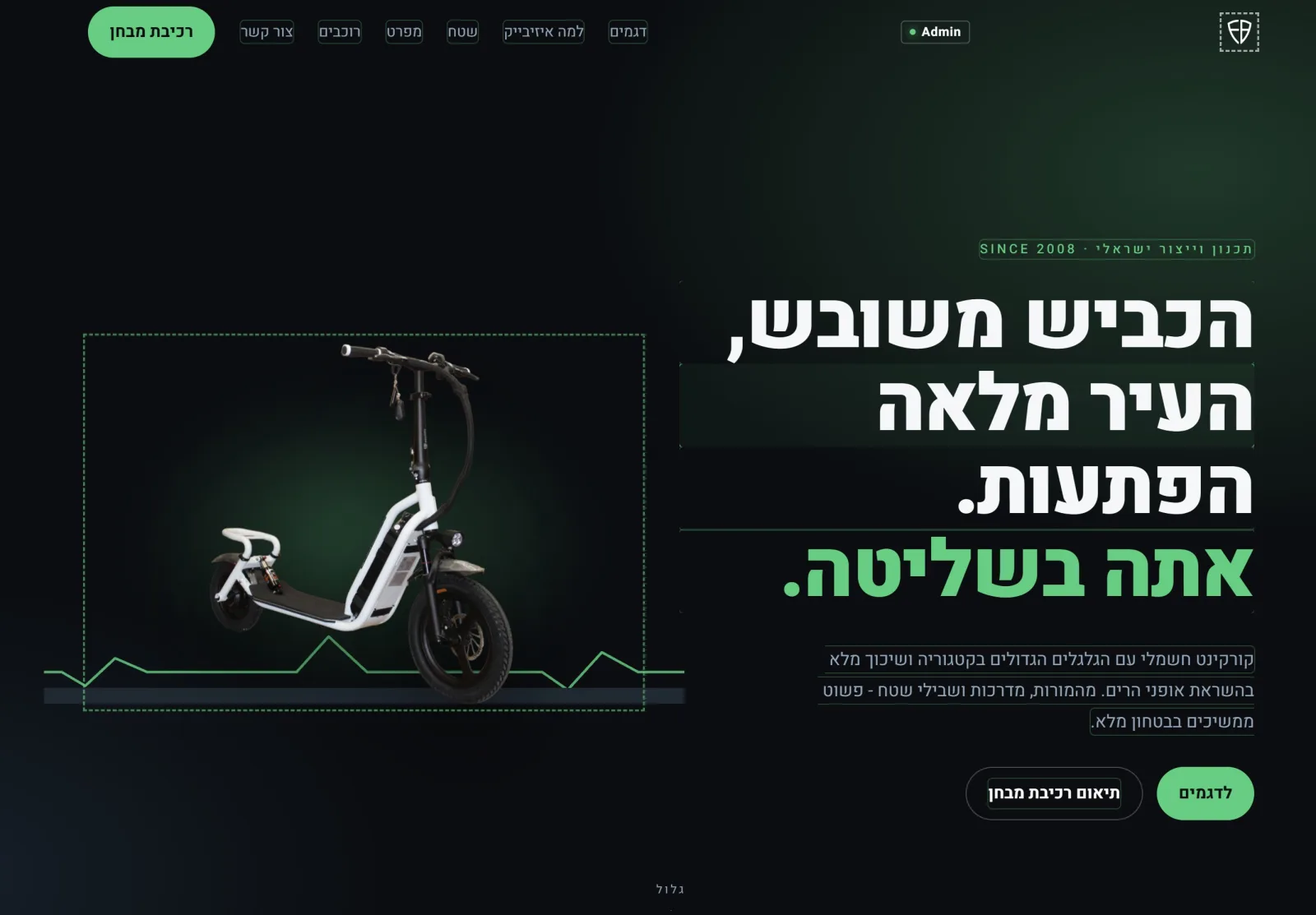
"Open Landing Page" opens the page. All text and images are edited directly on the page itself.
Choose an active page
In the grid, on the desired page's card, click "Set as My Landing Page".
Use an existing page
In the "URL" tab, enter /admin/filename.php or a full https address, then click "Save Address". The address is added to the grid.
Delete a page
The red × on the thumbnail deletes the page after confirmation. If the active page is deleted, another page becomes active.
Landing page builder fields
- Existing website address
- https only. The website to import from.
- Internal page scanning
- Up to 3 additional pages — preferably About, Services, Products, and Gallery.
- Set as the landing page
- Selected by default: the new page is immediately set as the site's landing page.
- Business name and main headline
- The large heading at the top of the page.
- Services / Products
- Up to 6 — name, short description, and image.
- Phone, email, address, hours
- Contact details at the bottom of the page.
- Images
- Main image, About image, and up to 8 gallery images. JPG, PNG, WEBP, or GIF, up to 12 MB per image.
- Landing Page URL
- Existing file in the /admin/ folder or a URL starting with https://.
Programs related to the landing page
landing_std.phpLanding page template - edit text and images here.
Business_dashboard.phpDashboard - opens from "Open landing page".
my-site.phpSite settings - the landing page URL also appears there.
Tips for a good landing page
- If the business has a website, start by importing it. This saves most of the typing, and you can make corrections afterward.
- Select Scan internal pages to collect more services and images.
- After importing, open "Details" to see which images were not copied.
- The main image should be wide - at least 500 pixels. Small images, logos, and icons are not included.
- You can create multiple page versions and compare them before choosing which one is active.
Frequently asked questions about building a landing page
How do I build a landing page without a website?
In the "I don't have a website" tab, answer the questionnaire and upload images, or click "Create page from template" and edit it directly.
How do I import an existing website?
In the "I have a website" tab, enter the website URL (https) and click "Import and build page". The scan takes up to a minute.
What is taken from the existing website?
Business name, main heading, description, About paragraphs, up to 6 services, images, logo, phone, email, and brand color.
How many landing pages can I create?
As many as you want. Each import, questionnaire, or template creates a new page, and you choose which one is active.
How do I edit text or an image on the page?
Open the page and edit it directly - every text and image can be edited.
Can I use an existing landing page?
Yes. In the "URL" tab, enter its address - a file in the system or an external website.
Does deleting a page also delete the images?
No. The page text is deleted, while the image files remain on the server.